Help center › Coinbase
How to connect your Coinbase to BipView (read-only)
The Coinbase key is not created in the Coinbase app or on coinbase.com: it is created in Coinbase's developer portal (portal.cdp.coinbase.com), with the same login. BipView only reads: created the way this guide shows (View only), the key cannot trade or withdraw. Button names are in English, as they appear in the portal.
Got this link on WhatsApp? Open it in your browser (Chrome or Safari): signing in to Coinbase with Google may not work inside WhatsApp.
- Step 1
Open Coinbase's API keys page
The button opens Coinbase's developer portal straight on the API keys page. It may take about 15 seconds to load: wait without clicking anything. Sign in with your Coinbase account if asked; if you land on the home dashboard, see the warning below. On the Secret API keys tab, click Create secret API key.
Open Coinbase's API keys page ↗
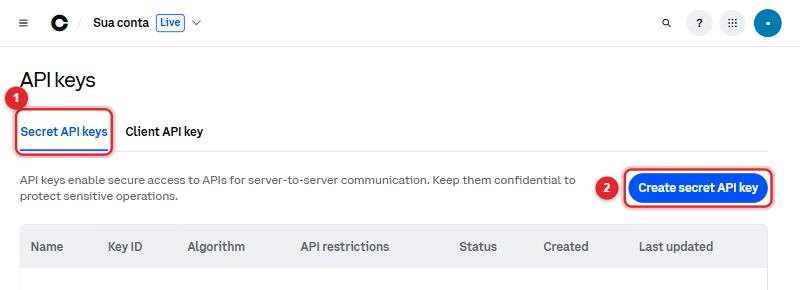
① Secret API keys tab · ② Create secret API key Landed on the home dashboard? Don't click “Get started” (the “Verify your business” box) or “Go to sandbox”: business verification is not needed to create the key. If the question “What best describes your organization? Business / Enterprise” shows up, don't pick anything: click this step's button again or go through the menu, Settings → API Keys. If the question won't go away, stop and write to suporte@bipview.com.
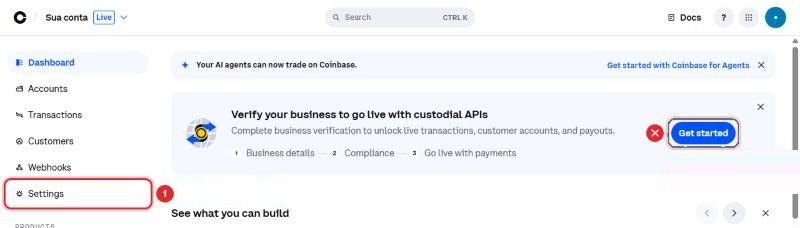
✕ Don't click Get started · ① The right way: Settings → API Keys Didn't land on the keys page? The way through the menu
Open the menu (on a phone, the ☰ at the top; on a computer, it is already on the left), click Settings and then API Keys.
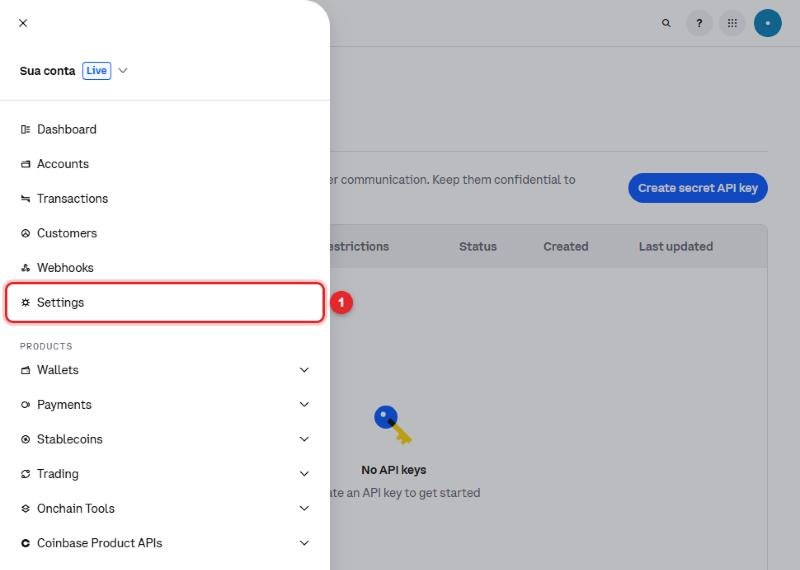
① Click Settings 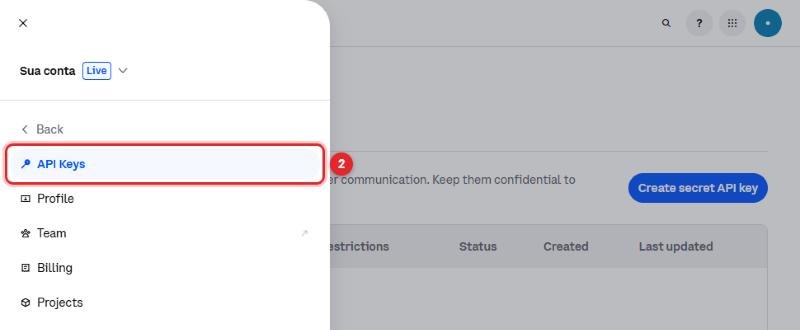
② Click API Keys - Step 2
Name the key and lock it to BipView's IPs
In API key nickname, use a clear name, for example BipView-ReadOnly. In IP allowlist, paste both BipView addresses, separated by a comma:
56.126.82.105, 56.126.93.102(if the portal asks for the slash format, use56.126.82.105/32, 56.126.93.102/32; once created, the key shows the IPs ending in /32, which is normal). Leave “Allow requests from any IP address” unchecked. That way, even if the key leaks, it only works from BipView's servers. Don't click Create yet: you still need to open Advanced settings (steps 3 and 4).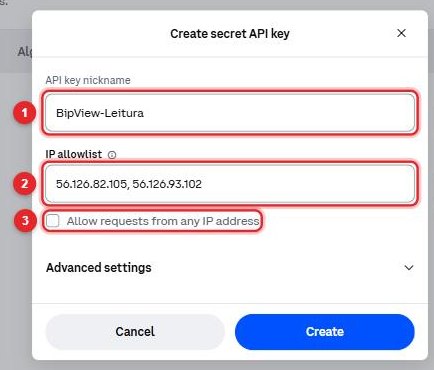
① Key name · ② BipView's 2 IPs · ③ Leave unchecked - Step 3
Permission: View (read-only) only
Open Advanced settings. Under Coinbase App & Advanced Trade, pick in Portfolio the portfolio that holds your crypto (usually the default one; the screenshot shows “Principal”). The key reads only that portfolio: if you use more than one on Coinbase, BipView shows just the chosen one. Keep only View (read-only) checked — it comes checked already. Do not check Trade, Transfer, Receive, Export or Manage: BipView only reads.
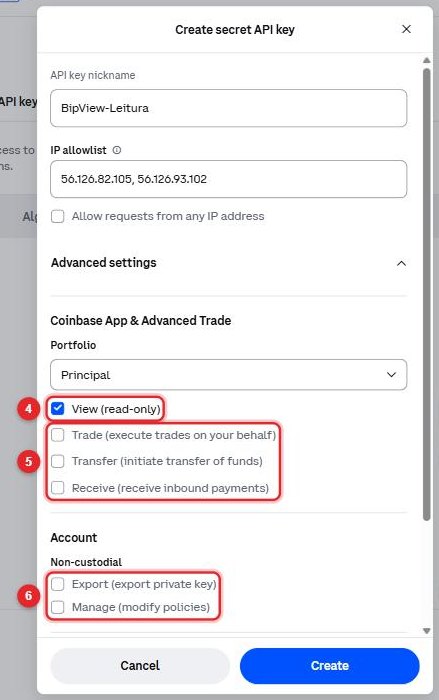
④ View (read-only) only · ⑤ and ⑥ Do not check - Step 4 · ⚠️
The step that trips people up: choose ECDSA and click Create
Scroll down to Signature algorithm and choose ECDSA (Legacy SDKs). The portal comes with Ed25519 (Recommended) selected and suggests keeping it — not for BipView: Coinbase does not accept Ed25519 keys for reading balances. If you already created an Ed25519 key, create another one and delete the old one in the portal. Before clicking Create, have the BipView app open on the Coinbase screen (step 6): the Secret is shown only once. Then click Create; if Coinbase asks for a confirmation (code, password or security key), complete it.
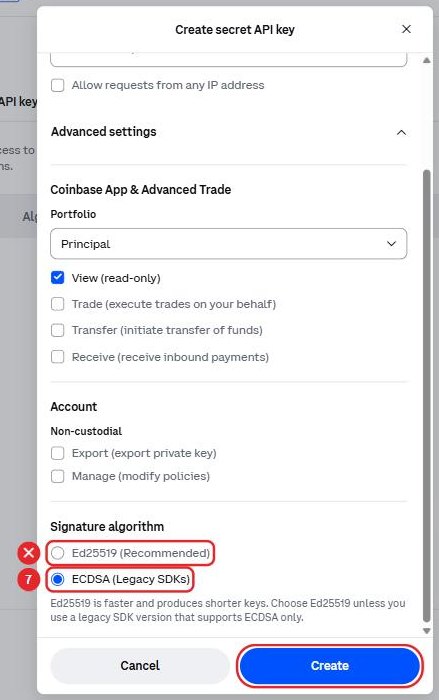
✕ Do not use Ed25519 · ⑦ Choose ECDSA (Legacy SDKs) · then, Create - Step 5
Copy BOTH fields now
The Save your API key window opens with two fields: API key ID and Secret. Copy each one in full, exactly as shown, from the first to the last character. Coinbase warns this is the only time it shows the key: to keep it, use the window's own download. If you lose it, delete the key in the portal and create another. (This step has no screenshot on purpose: the screen shows the private key.)
- Step 6
Paste them into BipView
In the BipView app: Wallets tab → + Exchange button → search for Coinbase. Paste the API key ID into the first field and the Secret into the second, then tap Conectar (Connect). You can paste the Secret with the lines run together: BipView rebuilds it. Depending on the app version, the fields may show as “API key name” and “Private key”, or “API Key” and “Secret Key”: it is always the ID in the first field and the Secret in the second. If the app shows “Configurações → API → Nova chave” or a guide using Binance as the example, ignore it: it is from an old app version; this guide is the one that applies.
After connecting
The app confirms Coinbase is connected, and balances show up after the first read. The first read takes about 1 minute; until it happens, the app's exchange list shows Coinbase as “READ_ONLY · awaiting first sync”. If Coinbase rejects the key, the same list tells you the same day: “the exchange rejected the key” (see the table below; on your phone, from app version 1.2.3). If it is still “awaiting” after 5 minutes, write to suporte@bipview.com with the time you connected.
If you see an error
| Message in the app | What to do |
|---|---|
| “Could not connect. Check the details and try again.” (in app versions before 1.2.2 it shows in Portuguese: “Não foi possível conectar…”) | It shows when the app cannot tell the reason. In app versions before 1.2.2, it also shows for an Ed25519 key and for an incomplete field. Check steps 4 and 5: key in ECDSA (Legacy SDKs) and both fields copied in full. |
| “the exchange rejected the key: allow the BipView IPs, choose read-only and connect again with the full key and secret” | Coinbase read the key and rejected it. Check steps 2 to 5: both IPs on the list, only View checked, ECDSA (Legacy SDKs), and both fields copied in full. If needed, create another key and connect again. |
| “This key is Ed25519, which Coinbase does not accept for reading…” | Create another key and, in step 4, select ECDSA (Legacy SDKs). |
| “The "API key ID" was not recognized…” | Copy the whole API key ID field, exactly as Coinbase shows it, with no spaces in the middle. |
| “The "Secret" was not recognized…” | Copy the whole Secret field, from the first to the last character. It is fine if the lines run together. |
Security
With View only, BipView cannot trade or withdraw. The key is encrypted before it is stored and never appears on screen. You can delete the key in the Coinbase portal anytime, and BipView stops reading right away.
Write to suporte@bipview.com and tell us which step you got stuck on. Never send your Secret (the private key), not even to us.
Updated on October 18, 2026.